Python Download and Installation Instructions
You may want to print these instructions before proceeding, so that you can
refer to them while downloading and installing Python.
Or, just keep this document in your browser.
You should read each step completely before performing the action that it
describes.
This document shows downloading and installing Python 3.9.6 on Windows 10 in
Summer 2021.
You should download and install the latest version of Python.
The current latest (as of Summer 2021) is Python 3.9.6.
Remember that you must install Python and then Eclipse as 64-bit applications.
Python: Version 3.9.6
The Python download requires about 25 Mb of disk space; keep it on your machine,
in case you need to re-install Python.
When installed, Python requires about an additional 90 Mb of disk space.
Downloading
- Click
Python Download.
The following page will appear in your browser.

- Click the Download Python 3.9.6 button.
The following pop-up window titled Opening python-3.96-amd64.exe
will appear.
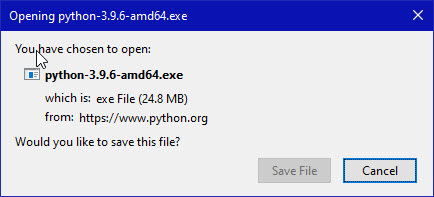
Click the Save File button.
The file named python-3.9.6-amd64.exe should start downloading into
your standard download folder.
This file is about 25 Mb so it might take a while to download fully if you
are on a slow internet connection (it took me about 10 seconds over a
cable modem).
The file should appear in your Downloads folder as

- Move this file to a more permanent location, so that you can install Python
(and reinstall it easily later, if necessary).
- Feel free to explore this webpage further; if you want to just continue
the installation, you can terminate the tab browsing this webpage.
- Start the Installing instructions directly below.
Installing
- Double-click the icon labeling the file python-3.9.6-amd64.exe.
A Python 3.9.6 (64-bit) Setup pop-up window will appear.
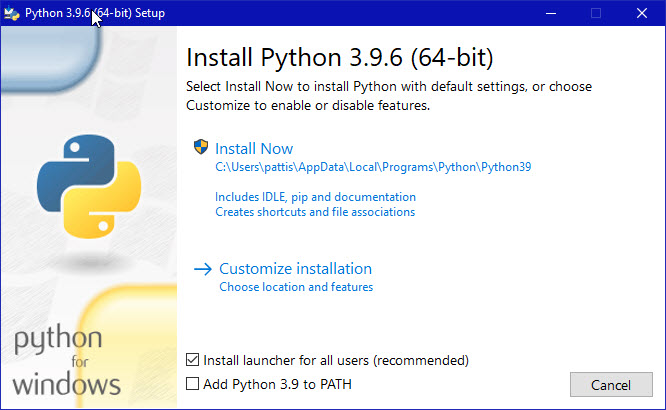
Ensure that both the
Install launcher for all users (recommended) and the
Add Python 3.9 to PATH checkboxes at the bottom are checked:
typically only first is checked by default.
If the Python Installer finds an earlier version of Python installed on
your computer, the Install Now message may instead appear as
Upgrade Now (and the checkboxes will not appear).
- Highlight the Install Now (or Upgrade Now) message, and then
click it.
When run, a User Account Control pop-up window may appear on your
screen.
I could not capture its image, but it asks,
Do you want to allow this app to make changes to your device.
- Click the Yes button.
A new Python 3.9.6 (64-bit) Setup pop-up window will appear with
a Setup Progress message and a progress bar.
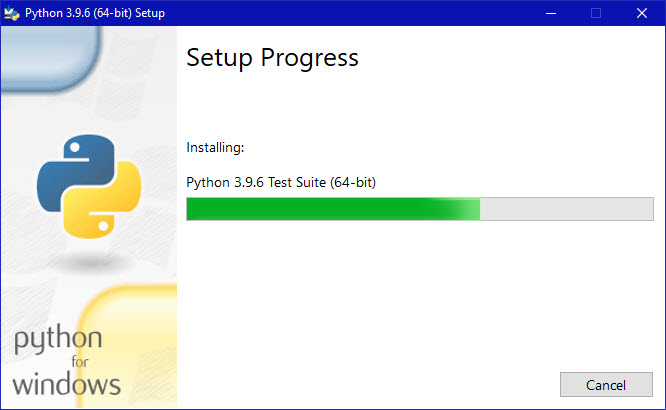
During installation, it will show the various components it is installing
and move the progress bar towards completion.
Soon, a new Python 3.9.6 (64-bit) Setup pop-up window will appear
with a Setup was successfuly message.
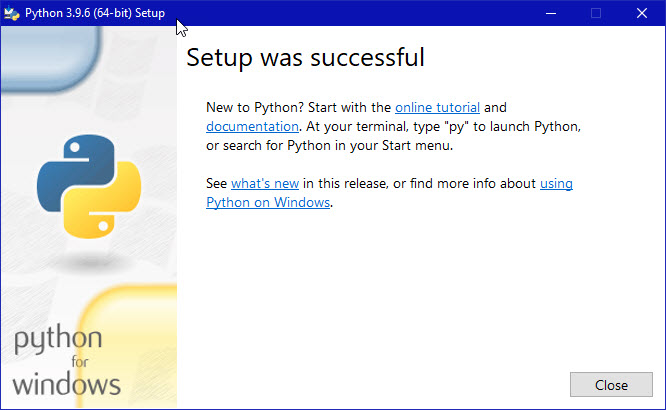
- Click the Close button.
Python should now be installed.
Verifying
To try to verify installation,
- Navigate to the directory
C:\Users\Pattis\AppData\Local\Programs\Python\Python39
(or to whatever directory Python was installed: see the pop-up window
for Installing step 1).
- Double-click the icon/file python.exe.
The following pop-up window will appear.

A pop-up window with the title
C:\Users\Pattis\AppData\Local\Programs\Python\Python39\python.exe
appears, and inside the window; on the first line is the text
Python 3.9.6 ... (notice that it should also say 64 bit).
Inside the window, at the bottom left, is the prompt >>>: type
exit() to this prompt and press enter to terminate Python.
You should keep the file python-3.9.6.exe somewhere on your computer in
case you need to reinstall Python (not likely necessary).
You may now follow the instructions to download and install
the Eclipse IDE.