| Introduction |
This handout will introduce you to the Windows XP Operating System and
all the skills that you will need to use it in a programming course.
Other Microsoft operating systems (Windows 2000, Vista, etc.) will most
likely operate in a similar manner.
At the beginning of the course, when we are just starting to learn
programming, practice these skills repeatedly, until they become intuitive.
Because there are few skills here, and because you will use these same skills
over and over again while taking this course, you will soon master them.
Every quarter about 250 CS students successfully complete this process. Please feel free to ask other students if you get stuck; and, if someone gets stuck and asks you a question, please try to help them. Mastering the use of the operating system is NOT an academic part of the course, so feel free to give and take help. |
| The Windows XP Operating System | Windows XP was build from the Windows NT Operating System (OS). Both are a 32 bit, multitasking OS. Version 1.0 of Windows NT was released in 1994; Version 4.0 was the final release. Its initial size was 6 millions lines of code, and it cost Microsoft $150 million to develop. Windows XP (the successor to Windows 2000, which was the successor to Windows NT) is estimated to contains 100 million lines of code. A fascinating book that describes the initial Windows NT project at Microsoft is G. Pascal Zachary Show-Stopper! : The Breakneck Race to Create Windows NT and the Next Generation at Microsoft, Free Press, 1994. |
| Windows Terminology |
Here are a few important terms that you must know to be able to understand
the rest of the information on this page.
|
| Logging On |
The following instructions are for logging onto any machine running
Windows XP in the ICS labs at UCI; these include ICS 183, ICS 189,
ICS 192, and ICS 364 (the largest lab, open more hours than any other).
You can do coursework from machines in any of these labs.
When you arrive at a machine, you should see a Welcome to Windows window displayed; if not, wiggle the mouse until you see this window. Then
|
| Logging Off |
When you are finished working on a lab machine, you should always log off.
Before logging off, make sure to Backup all your
files that contain useful information and remove them from the computer,
so no other students can see them.
Backup your files to your Unix file storage space and/or onto a USB memory
stick or some other portable/external storage device (preferably, backup
your files to both).
Then ...
and then click the Log Off button. In fact, to ensure that this operation is successful, you should wait until the Welcome to Windows window is redisplayed. |
| Viewing File Extensions |
File extensions are the the part of the file name after the period (e.g., the
doc in bookreport.doc or the java in
Application.java).
It is often very useful to be able to see both file names and their
extensions.
On the Windows XP operating systems, this is the default; on others you might
need to follow the instructions below.
|
| Renaming Folders and Files |
To rename a folder or file (if it is a file with an extension, the
extension should remain the same: you will be warned if you accidentally
change it);
|
| Zipping Files |
Zipping (compressing) and Unzippng (decompressing) software is already
installed on all the computers in the labs (and on most computers as part
of their Operating System).
If you don't have zipping/unzipping software, you can follow this link to
the
WinZip
web page to download a trial copy or buy a copy).
You can download a trial copy and use it for 45 days.
If you want to purchase your own copy, it cost ~$30.
To zip all the files in a folder named F, into a single zip file (typically occuping less space)
When this operation finishes you should see a new file on your desktop (or wherever the folder you zipped came from) with the same names as your folder (the folder will still be there too) and the zip file extension. So, in this case, the zip file is named F.zip). Its icon will show a zipper across the folder (other software chose a C-clamp compressing the folder.
|
| Unzipping Files |
To unzip all the files in a zip file (see above), for example
F.zip
It is important to be able to |
| Browsing Course Materials |
All the course materials are avaliable through my web page on the World Wide
Web (WWW).
Here is a brief description of these main entries
If you want to find some keyword on a web page, type Ctrl F or select Edit | Find on this page (Windows IE) or Edit | Find in This Page... (Firefox), then enter the keyword, and click the Next button/icon. This searching mechanism can be a great help if you know some information is on a long web document, but don't know where in the document it appears. During this course you will be constantly reading web pages, and sometimes downloading materials from them onto your computer. Generally, it is critical to become an expert navigating the course web with a browser; specifically you should become familiar with the pages used repeated in this course (so that you can easily find all the materials you need). If you run across any "missing links", please drop me a short e-mail so that I can correct them quickly. |
| Downloading from the Browser |
Course materials are often either .html files viewed directly in a
browswer, or folders, or files (mostly zip files), or applications
downloaded to your computer (to be activated by an application once they
are saved on your computer).
Clicking an html link causes its page to be displayed in your
browser.
Clicking a download link causes its contents to be saved onto
your computer.
The easiest place to save the file is on the Desktop. If Desktop is not in the Save In: box, click the yellow folder icon to its right (the one with the up-pointing arrow) repeatedly until Desktop appears. Then click Save. If you did not want to download that file, click Cancel at any time. When you click on a download link, Windows might automatically download the application to a special location from where you will have to retrieve it. Also, sometimes Windows will ask you whether you want to install/open up the application immediately: if prompted, you probably do NOT want to open the application. I cannot predict which of these windows will popup on your machine, but once you learn the sequence, browser downloading will be simple and natural. |
| Starting and Stopping Eclipse |
We will be using the Eclipse Integrated Development Environment (IDE) for
writing, running, browsing, and debuggng our Java code.
The Eclipse project itself is described on the
Eclipse.org
web page.
It begins,
Eclipse is an open source community whose projects are focused on building an open development platform comprised of extensible frameworks, tools and runtimes for building, deploying and managing software across the lifecycle. A large and vibrant ecosystem of major technology vendors, innovative start-ups, universities, research institutions and individuals extend, complement and support the Eclipse platform.We start Eclipse by double-clicking (a shortcut to) its icon .
(the instructions for downloading/installing Eclipe include creating a
shortcut; for lab machines, your must click Start | All Programs | Java |
Eclipse).
While it is loading, it displays the following splash screen.
Note that Version 3.4 (Ganymede) is the most recent release of this software;
sometimes the lab is one version behind (version 3.3 is Europa).
At this point, Eclipse displays the Workspace Launcher window. If this is the first time that we have started Eclipse, this window will display a suggestion typed in the Workspace pull-down box, as shown below. If we examine this pull-down box, there will be no other items in it.
The form of the suggested workspace is C:\Documents and Settings\username\workspace, where username appears above as Administrator. On subsequent statups, the contents of the pull-down box will default to the last workspace that we used. It is possible to create/use multiple workspaces: the most recently used ones will appear as items in the Workspace pull-down box, with the visible workspace the one that we used most recently. This information is stored in the eclipse folder (created when Eclipse was installed), in the file configuration\settings\org.eclipse.ui.ide.prefs (which is a text file that you can read and even edit. If we use just one workspace (recommended), we can put a check in the checkbox Use this as the default and do not ask again, to avoid this window's prompt altogether. Or, we can leave this box unchecked, at the cost of having to click the OK button in this window every time that we start Eclipse. Go ahead now and click the OK button to select the default work space (or Browse... or type in a folder name). The splash screen will disappear and Eclipse should appear on the screen in the following form (although its windows will be bigger). |
.
|   | This screen appears only the first time you start Eclipse on your home computer, but appears once every time that you start Eclipse in the lab. Click the X to the right of the Welcome tab and Eclipse will display its standard form. |
.
|   |
To stop Eclipse, we can either select File | Exit from the left-most
pull-down menu, or just click the terminate window button in the
upper-righthand corner.
If the latter, Eclipse will prompt for confirmmation of termination with the
following window.
Here too, we can put a check the Always exit without prompt checkbox to avoid this window's prompt altogether. Or, we can leave this box unchecked, at the cost of having to click the OK button in this window every time that we stop Eclipse by clicking the terminate window button. If you ever put a check in one of these "do not prompt again" checkboxes, but later want to restore these prompts, you can do it as follows. Once Eclipse appears on the screen, select Window | Preferences. Then disclose General (click its plus) and Security and click Startup and Shutdown. You should ultimately see the following window.
Check or uncheck whatever boxes you desire for your preferences, then click Apply, and finally click OK. In fact, put a check in the Refresh workspace on startup checkbox and then click Apply, and finally click OK. Practice starting and stopping Eclipse, setting these prompt/confirm preferences as described above, and observing their behavior. After starting Eclipse, change the size of its window, and note that when you stop and then restart it, the window will remember the size you last specified. In fact, once we start using Eclipse for real programming, whenever we start it, it will be in exactly the same state as when we last stopped it (on your machine only; on the lab machines, all your work disappears between logins, which is why you should always save your work on your unix file storage space and/or your USB memory). Therefore, it is simple to resume working in exactly the context we were in when we stopped. |
| Installing the Class Library |
We will use a special class library (complementing the Java API) during
the quarter.
Follow the instructions below to install this libray.
These are the same instructions supplied in the document explaining how
to download and install Eclipse on your home machine.
On your home machine, you must follow these instructions just once;
on the lab machines, you must follow them whenever you log in (unless
you are saving/restoring your entire workspace (see
Unix File Storage for more information).
|
.
|   |
|
.
|   |
|
| Eclipse Nomenclature |
This section contains a terse description of Eclipse using highlighted
technical terms (become familar with them) to describe its basic layout and
operation.
Because Eclipse is an industrial-strength tool, and we are using it in
an academic setting (an early programming course), we will focus on its
simpler aspects.
The most important terms thate we will discuss and use are workbench,
workspace, perspective, view, and tool bar.
Workbench/Workspace: These two terms are closely connected, to the point of having the same prefix. A workbench (or more accurately, a workbench window -see the window below) is the Eclipse interface to a workspace. A workspace is a folder that comprises a collection of files/subfolders that store the workspace's preferences (how the workbench window appears on the screen and how it displays/manipulates it contents) and projects (collections of related programming resources -primarily Java classes). We interact with a workspace -view and manipulate its preferences and projects- through a workbench window. Preferences specify how a workbench window displays a workspace; projects specify the software that we can develop using the workbench window. In the section above, we started Eclipse and created a new, "empty" workspace; actually, it is not really empty: it stores all the standard initial preferences for the workbench window, but no projects. Then, the workbench window displayed this "empty" workspace. So, a workspace stores information about each of its projects in a separate folder. It knows where all their resources are located, whether they are inside or outside the workspace. Yes, a project folder (always stored inside a workspace) can store some or all of its resources outside that workspace. The workspace also records whether each project it contains is open or closed for use (for more details, see the section on Closing Workspaces). Finally a workspace stores preferences that apply to all its projects, and to the workbench using the workspace. Eclipse is general: we can have any number of workbench windows open, each referring to a unique workspace, or groups of windows referring to a common workspace. For simplicity, we will always use just one workbench window, and it will always refer to the same workspace. In fact, in the following discussion we often will say "Eclipse" when we mean "workbench window": e.g. We use Eclipse to interact with a workspace. Below is an example of Eclipse using all the standard preferences, with labels affixed to many of it interesting features. The rest of the this section will explain its layout and operation. |
.
|   |
Perspective: At any given time, Eclipse displays one perspective
of the many that it can display.
Each different perspective is suited to one specific programming task.
The perspective shown above in Eclipse is the Java perspective,
which we use to write Java code.
Notice that the name of the perspective, Java appears depressed (it
is active) on the upper-rightmost tab.
It it followed by another tab, indicating the Debug perspective; we
can switch to this perspective being active by clicking its tab.
A third perspective that we will use, less frequently than these two, is named
Java Browsing.
View: Each perspective contains a variety of views that allow us to view, navigate, and edit information about a program. So, views are not just for looking: we can use views to change information too. A view may appear as a single tab in its own window, or it may be one tab in a tabbed notebook window, containing many views, of which only one is active at a time- the top one. The Java perspective contains a variety of standard views. Going clockwise from the top left,
Tool Bar: The workbench tool bar appears under the menu bar that includes the drop-down menus labeled File, Edit, Source, etc. The tool buttons here act as short cuts for common operations in a perspective; we can also invoke these operations with the pull-down menus, but these buttons are faster. The picture above labels the Debug and Run buttons, as well as the New Java Project, New Java Package, and New Java Class buttons (described in the next sections). The tool buttons on this tool bar change when we change the perspective. We can customize tool bars within a perspective, but we will not cover this topic here. |
| Starting a New Programming Project |
In this section we will discuss how to start a new programming project,
and how to manipulate the perspectives and views on the workbench window
displaying that project.
So, start up Eclipse as described above.
Before starting any project, we should set the preferences for Eclipse to show (and default to) the Java perspective. Generally, we can manipulate perspectives in a few interesting ways.
To start a new project, click
To create a new class inside this project, click
Because I put a check in the appropriate checkbox, Eclipse will automatically include a main method for the Application class. Click Finish when you are done typing the name and checking the box. Eclipse will update to look like the following. |
.
|   |
Before continuing to the next section (how to edit code), we will briefly
learn how to manipulate windows and views, to customize them.
|
| Editing a Class File |
We edit classes in editor windows, mostly using standard computer editing
commands.
Click the Edit pull-down menu for a list of commands and their
keyboard shorcuts.
Also see the Source pull-down menu for additional commands involving
identation, (re)formatting, commenting, and generating/organizing the
members of a class.
Whenever we create a new class, or double click any class in an Package Explorer, Eclipse will add a view/tab for editing that class in the editor window (if such a view is not already present). To add a second editor view/tab for a class -so that we can view two parts of it simultaneously- we can right-click its view/tab and select New Editor. Within an editor window, we can manipulate views/tabs as described above, including dividing one editor window into two editor windows, vertically or horizontally. Note that in this editor, a single click positions the cursor; a double click selects a token; dragging the cursor selects multiple characters/tokens (depending on whether the dragging started after a single or double click). After creating a new class, the editor window looks like as follows. Practice selecting text (characters, tokens, lines) in this window. |
.
|   | Now we can edit the file. Below, we completed the main method. Afterwards, the window appears as follows. |
|   |
Note the annotations indicating
To save the changed contents of an editor view to a file, right-click in the view and select Save (this word will not even appear as a selection, unless the file has been changed: see the change indicator). After issuing this command, the file is updated to contain all the information currently in the view for this class. If instead we selected the Revert File command, the view would would be restored to the file's contents when it was last saved. So, use Save and Revert File carefully. If we issued the Save command in the window above, it would be updated and appear as follows.
In this editor, whenever we type an opening delimiter -a brace, parenthesis, or quotation mark- the editor automatically supplies the matching closing delimeter, and then repositions the cursor between the two so that we can type the delimited entity. Likewise, whenever we double-click directly after an opening delimiter or directly before a closing delimiter -a brace, parenthesis, or quotation mark- the editor automatically highlights all information between the matching delimiters. Below I double-clicked just to the right of the opening brace in the main method.
This operation -matching opening and closing delimiters- is often useful when we are removing syntax and even semantics errors, when debugging. We can elide the method we just typed from the view by clicking its disclosure circle. Generally, clicking on a - means disclose the elided information; clicking on a + means elided the disclosed information.
In fact, if we hover over a disclosure circle that is eliding information, the cursor will change to a hand and Eclipse will temporarily display the elided information.
In complicated classes, with many members, we can use the Outline view to rapidly examine a selected members in the class: jump to its definition. Although not needed here, we can click among import declarations, Application, and main in the Outline view, and observe how the editor view changes, moving the cursor and highlighting the selected tokens. In fact, if we position the cursor inside some code, the Outline view updates to highlight its display of the member that we are editing -sometimes even self-disclosing the member, if it is nested in another member. Also observe the changes in the bar indicating the scope of the member being edited. Finally, the ctrl/space command in Eclipse generally means "help me complete what I am typing". Two useful examples are:
|
|   |
After selecting this first for option, the editor view shows the
following for template, whose outline is now ready to be
edited/corrected
Now, change the for loop to contain the correct initial value (1), limit test (i <= limit) and loop body (System.out.println(i);) One last but very useful item. To get line numbers for a file, right click in the gray left margin and then click Show Line Numbers to toggle its "check". Doing so in the above window leads to it displaying as follows.
Notice the number are right aligned. Practice all these operations until you are comfortable entering and navigating code in an editor view. |
| Run the main method in a Class |
To run the main method in any class that you are editing, first save the
changes to that class (right-click in the editor view and select
Save); then, right-click the editor view for that class, and
then select Run As and Java Application.
We assume here that there are no syntax/execution errors in your program (that
you typed it exactly as shown above): see the next section for information on
correcting syntax/execution errors.
The first time you run a Java program, you will see the following window
As shown, put a check in the Always save resources before launching checkbox and the click OK. In this way, whenever you run the program, Eclipse will automatically save all the files you changed before starting to run your program. When you run a class in the Java perspective, a Console view automatically appears and becomes active on the bottomost window (along with the Problems, Javadoc, and Declaration views). When run this way, the code listed in the last section, displays the following windows.
First, notice that information entered by the user appears in a green font; information displayed by the computer appears in a black font. Also notice that the line below the Console tab shows that the main method has run to completion -it is terminated. The interaction appears in the contents of the Console, view: if it does note fit entirely in this view, its contents can be scrolled -both vertically and horizontally. There are two useful tool buttons to the right of this tab. Immediately to the right is the Terminate button, a faded-red square that stops a running program (it is faded here, because it cannot be selected: the program already is terminated). The third one is the Clear Console button, which clears the contents of the console (Eclipse does this automatically, when it runs a program). The Console window below shows this program in the middle of running; it is waiting for the user to enter the limit.
Here the line below the Console tab does NOT indicate that the main method has terminated. So, the Terminate button is bright red; pressing it will stop the program.
Once we have successfully run a program, we can use the Run
button on the workbench tool bar ( Practice all these operations until you are comfortable using the Console view while running and rerunning programs. |
| Correcting Syntax Errors |
The process of debugging involves first correcting syntax errors, so the
program will compile correctly (and be runnable), and then correcting
execution errors, so that the program will run correctly (produce the
correct answers).
This section discusses only how to debug syntax errors, using the standard
Java perspective; a later handout discusses how to debug execution
errors, using the Debug perspective.
The universal color for a syntax error indicator in Eclipse is red; the
universal indicator for a syntax error in Eclipse is a red backgound
(often a box, sometimes a circle) containing an X
(e.g., Note that if you click the Project pull-down menu, the item Build Automatically should be checked: if it isn't, click it, and the next time you click this pull-down menu it should be checked (clicking toggles it). Eclipse tries hard to spot syntax errors while you are typing/editing your code, and help you fix them immediately. For example, after we have included the import statement in the first line, and entered the first line in the main method, the editor view reports a syntax error because we misspelled forInt as forInp. Notice that there are 4 error indicators in this editor view. The error indicator in the left margin signals that not only has Eclipse detected a syntax error, but it has a suggested fix for this error.
If we hover over any of the 3 error indicators on the line, Eclipse will display a syntax error message for that line; below, we illustate hoving over the error indicator in the left margin.
In fact, if we click on this error indicator, Eclipse suggests possible fixes.
|
|   |
If we then double-click on the first suggestion, Eclipse will correctly fix this error and all 4 error indicators will disappear, but they will each be replaced by an equivalent warning indicator. This is because Eclipse is configured to warn whenever we define a local variable (in this case limit) whose value is not used subsequently in the method. If you hover over the warning, Eclipse will show its contents. There is no real error here; we just haven't written that code yet that uses limit, so in this case we can ignore the warning; it will disappear once we write code that use limit.
Now assume that we type the next two lines and make a mistake on each: on the first line we write i+ instead of i++; on the second we write I instead of i. Then Java will show an error token error on the first bad line (but has no suggestions to fix it) and an slightly different looking error token on the second (for which it has suggestions to fix it); Eclipse marks both lines on the right as being in error, and underlines the problem token on each line.
When we fix this first error, then the editor view shows
If we save the file now, Eclipses not only saves the file, but it also recompiles it. After compiling this class (and still finding one error) all the views are updated to contain error indicators. |
|   |
First, note the file-changed indicator (*) and the purple change bars in the
margin have disappeared.
The result (now showing in all views) is that syntax errors are marked
in the Package Explorer and Outline view (as well as in the
tab for the editor view for this file, and finally the Problem
tab at the bottom includes the error as well.
We can visit and correct each syntax error in the editor view by clicking on its line in the Problems view (generally all the syntax errors appear on these lines). We can also resize each of the columns in the Problems view. In addition, we can click on any red boxes in the right margin of the editor view; sometimes clicking the disclosure circles to the left of the code will make this operation easier. If we correct the final error in the editor window, only the editor view changes: its error indicator in the left margin turns from red to gray. All the other error indicators in that view -and in the other views- stay the same.
Finally, we can perform two interesting operations here.
|
|   |
Therefore, there are at least two ways to recompile a class.
The interactions among saving, compiling, and running can sometimes be a bit subtle and confusing. Confusion especially arises concerning the synchonization of the files you are editing and Eclipse's reporting of syntax errors in various views. For example, if we fix an error, its associated error indicatators may disappear from some -but not all views; we must sometimes perform further operations, like saving or recompiling to synchronize all these views. At times, recompiling by saving hasn't done what I've expected, and I've had to recompile by trying to run. There is no substitute for using Eclipse repeated to better understand its operation. |
| Advice for Debugging Syntax Errors |
Interpret syntax errors/warnings liberally.
|
| Finishing a Project: Closing/Removing It |
As we have seen before, when we terminate Eclipse, it saves all the preferences
and projects that appear in our workbench.
When we restart Eclipse, it initializes itself in exactly the same state as
when it terminated.
Therefore, we can seemlessly start Eclipse, create/work on our projects, stop
it, restart it, and continue working on our projects just where we left off.
Now let us explore three options for finishing a project. We need to find out what happens to such projects both on our workbench and in our workspace. The simplest option is to just leave a project alone. It will continue to be present on our workbench and in our workspace. This is a safe option, although our workbench can be come cluttered, and we might accidentally change a project that we meant to leave alone. So, we will explore two other options: closing and deleting. Closing: First, we can just close the project. Closed projects still appear in the Package Explorer (and Navigator) view in our workbench (and are still stored in our workspace folder), but with no disclosure square: we cannot examine, run, or modify our code in such projects. We close a project by right-clicking its name and then selecting Close Project. One of the few operations that we can perform on a closed project is to reopen it: by right-clicking its name and then selecting Open Project. Once this is done, we can explore the contents of the project again. So, if we are done with a project, we can close it (to avoid accidentally change it) but reopen it if we need to examine/change it. Another operation is removing it from the workbench, which is discussed next. Deleting: Our second option is actually removing a project from our workbench. In this case, the project disappears altogether from our workbench, as if it were never there. We delete a project by right-clicking its name and then selecting Delete; at this point, Eclipse displays the following confirmation window.
If we leave the Delete project contents on disk (cannot be undone) checkbox unchecked, Eclipse removes the project from its workbench, but the folders and files containing all its resources remain intact, whether inside or outside the workspace. We can leave this information where it is, or copy/move it elsewhere; at a later time, if we want to recreate the project, it will be easy to do if we still still have all this information. But, if we put a check in the Delete project contents on disk (cannot be undone) checkbox, then Eclipse not only remove the project from its workbench, but also deletes the folders and files containing all its resources, whether inside or outside the workspace. Obviously this latter choice is very dangerous, and I recommend NEVER putting a check in this checkbox, which always defaults to being unchecked. If need be, and after we are done done with this operation, we can delete the project folder (whether inside or outside the workspace, or archive it by moving it to any other directory on our computer. Finally, if you see the following pop-up window,
first, check the box Always delete associated launch configurations (so you won't see this pop-up window in the future), and then click OK. |
| Creating a Programming Project with Existing Resources |
We have already seen in detail how to start a new project in Eclipse.
These projects begin with only the standard Java Runtime Environment
(JRE) resources; we have also seen how to create classes in these projects,
edit their files, and run their programs.
In this section, we will first discuss two different ways to start a new project using
classes already written in files inside a project folder.
For example, we might download from the web a folder that contains a collection of files that already define various classes in a program. My Sample Programs link leads to a repository of such folders; later in the semester I will ask you to download programming project folders that contain some starter code that I have written. The easiest way to create a new project from a project folder is first to copy (or move) that folder into the workspace directory. In fact, as we just learned, if we delete a project from a workspace, but do not delete its contents, the project folder remains in the workspace. By deleting the Demo project above, and not deleting its contents, I now have an empty workbench, but the Demo project folder is still in my workspace.
To start a new project with the resources already in the workspace
(as is the case with Demo), click
We don't even have to copy the project into the workspace; sometimes it is
easier to use folders in other locations (like on the desktop).
To start a new project with existing resources NOT in the workspace, click
So long as a project referring to this folder exists is in my workbench, the bouncingballs folder should remain in this location, because although this information is not stored in the workspace, the workbench refers to it. Most importantly, all changes made to files in this project will actually be made in the folder containing its resources. If we delete the project from the workbench, and do not delete its contents, the bouncingballs folder will remain intact. To run this program, disclose the Demo2 and (default package) in the leftmost, Package Explorer window. Then right-click on Application.Java and select Run As and then Java Application. Click in various locations on the white screen (to place balls) and then click on the Start button. |
| Some Useful Preferences |
Eclipse allows us to specify a huge number of personal preferences for the
workbench.
We can even name collections of preferences, and export them to other users
(or import preferences from other users).
We set most preferences by first selecting Window | Preferences,
which is the last option in the Window pull-down menu.
From there, we use disclosure boxes to navigate to the preference that we
want to find.
Here are some useful preference to know about.
|
| File Storage: Uploading and Downloading |
Typically you will work with folders and files on the desktop of your computer.
Before logging off a lab machine, you must save any material that you will
want to work with again (like programs that you are developing), because it
will be removed from the machine you are working on when you log off.
If you are using your own computer, your files will remain there. But, it is useful to save material even from your own computer, just in case you accidentally delete it. It is a sad fact of life, but almost everyone will accidentally delete some important file during the quarter. The simplest way to save your work is to copy it onto a USB memory stick. Such memory sticks cost about $5/gigabyte: one gigabyte will easily store all the programs that you will work on this quarter (and probably easily store all the programs you work on all year). If you do not already have (and know how to use) such a memory stick, please purchase one -they are available at the bookstore- and learn how to use it. When you are on a lab machine, you can also copy your project folders and files onto unix backup space hosted by ICS. All students with ICS Lab accounts get this space. You can easily move folders and files from any lab PC to this space, and likewise move information from this space to a lab PC. Start by double-clicking the My Computer icon (or left-clicking Start at the left of the task bar and then left-clicking the My Computer icon). You will see a listing for a Network Drive that will appear something like username on 'data'(H:). If you double-click on that icon/text, you will see a window that represents your unix back space. Treat it like any disk drive: you can move folders/files between your PC and this space by the same means you move folders/files on your PC alone. Based on my evolving understanding of how to use the ICS labs, I would recommend that when you use these machines, you backup your entire workspace folder, which for the ICS lab machines is stored at c:\temp\Documents and Settings\yourname\eclipse\workspace. It would be best to zip this workspace and then copy it either/both to your Unix space and your USB memory stick (or other portable/external storage). |
| Submiting Completed Programming Assignments |
You will submit programming assignments and other work electronically, via a
special system called Checkmate.
This same system allows you to check the status of your programming
assignment submissions.
To use Checkmate, you must first activate your UCInetID.
If you have not already done so,
activate it now.
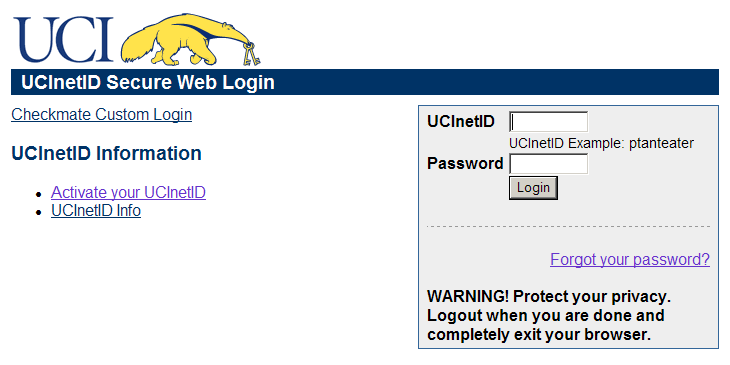
Once you have an activated UCInetID, you need to Login to Checkmate and enroll yourself in my ICS-21 course (you do this only once, at the start of the quarter). You will first see the UCInetID verification page
|

|   |
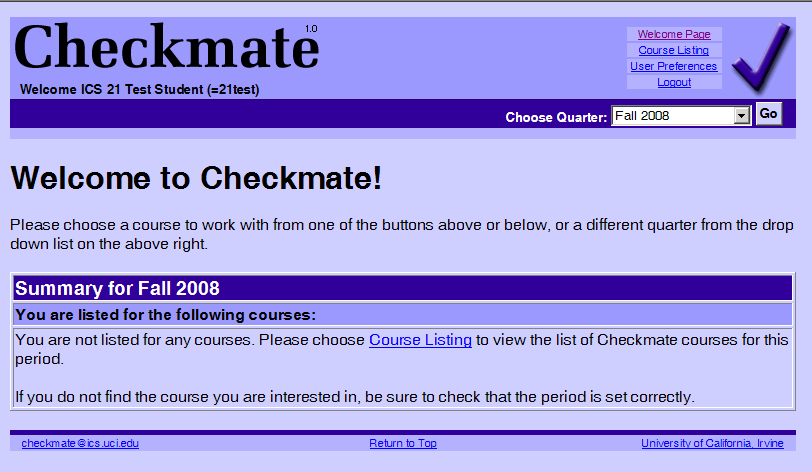
Enter your UCInetID and Password on this page. You will next see the following page, which include your Name (UCInetID): here it shows my name as Test Student and my UCInetID as (=21test) since I am not a student at UCI.
|

|   |
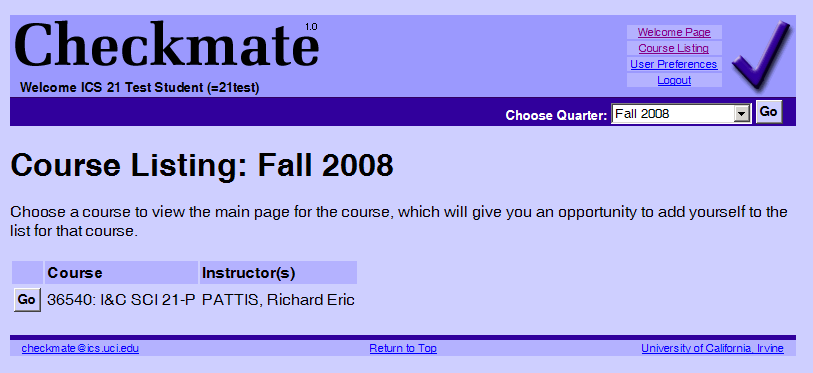
Now you should click on the Course Listing link to enroll yourself in my ICS-21 course. You will next see a page similar to the following one (except that it will have all courses and instructors using checkmate this quarter). Note the course and name, as (a) sometimes I teach multiple courses and (b) sometimes more than one instructor teaches a course with the same number.
|

|   |
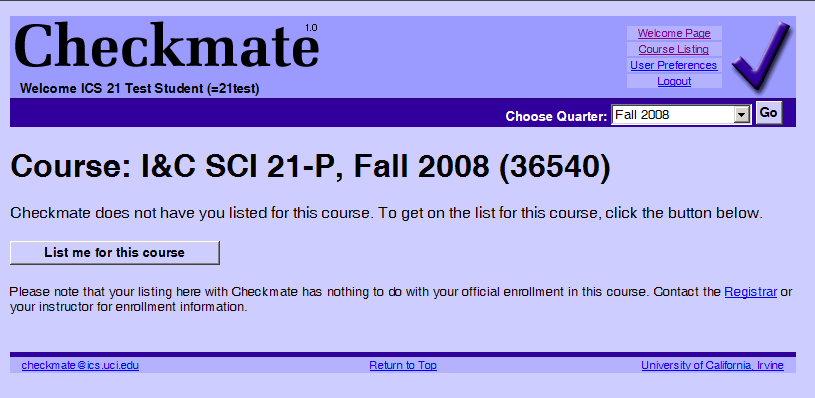
Once you have located my course, click the Go button to the left of it. It is listed for the Fall 2008 as 36540: I&C SCI 21-P) and my name. You will next see a confirmation page similar to the following one.
|

|   |
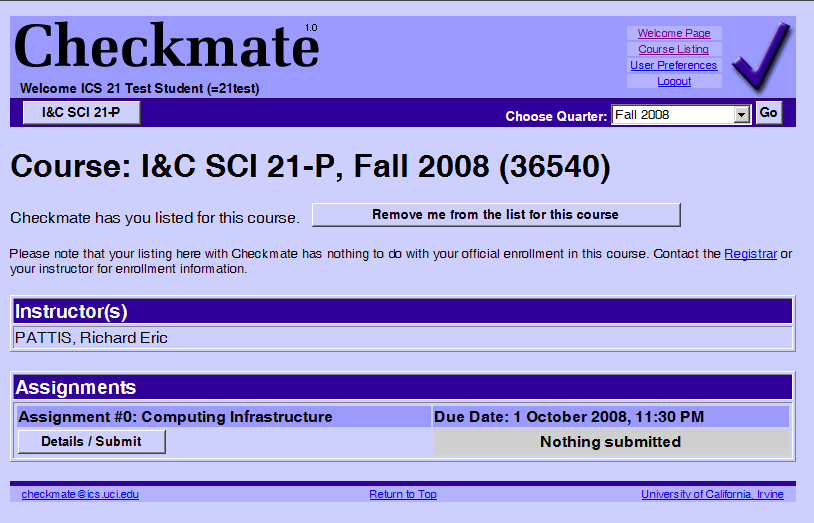
Assuming that you are enrolling in a course for the first time, Checkmate will show you as "not yet listed" for this course. Click the List me for this course button. You will then be directed to the Assignments page similar to the following one.
|

|   |
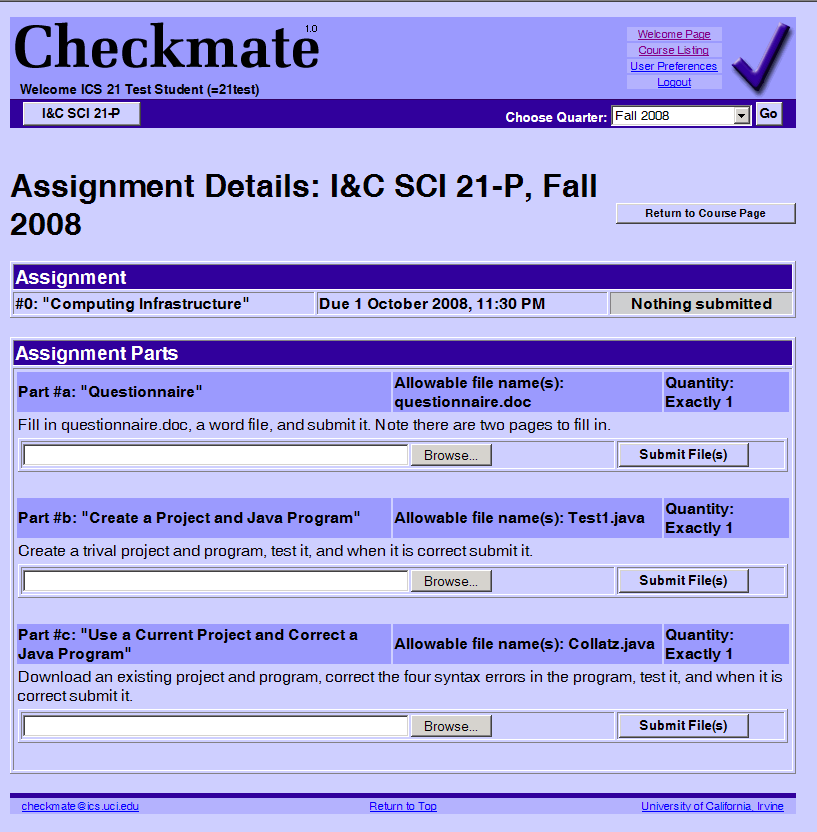
On this page, only Assignment #0 is visible; future programming assignments will become visible starting on the day each is officially assigned. It shows Nothing submitted, meaning that you have not yet submitted any parts of this assignment. Note that we will start working on this assignment during our first lab, based on the material in the Eclipse part of this handout. Let's now examine how to see the details of this assignment and submit one part of it (all other parts are submitted similarly). Click the Details/Submit button under Assignment #0 and you will see a page similar to the following one.
|

|   |
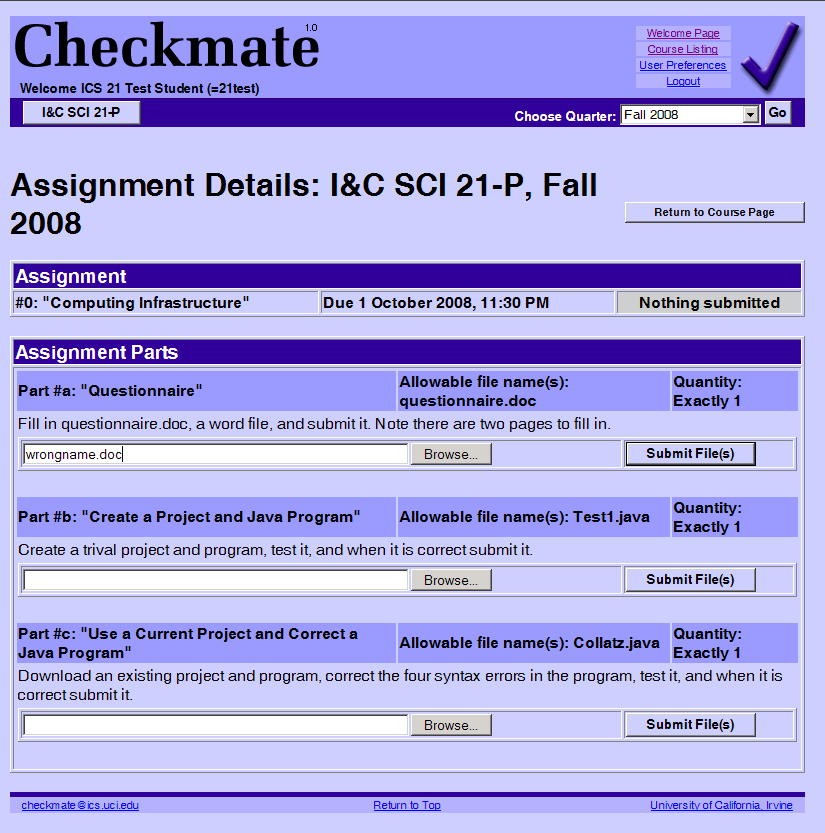
So, this assignment (#0) has three parts (a, b, and c): each allows Exactly 1 file (see Quantity) to be submitted; for part ait must be a file named questionnaire.doc; for part bit must be a file named Test1.java.doc; and for part cit must be a file named Collatz.java (see Allowable file names(s):). Each part is first described by some text. Each part also has a Browse... button that you can use to find the file that you want to submit, and a Submit File(s) button to start the submission. If you click Browse... and then double-click the wrong type of file, as illustrated below
|

|   |
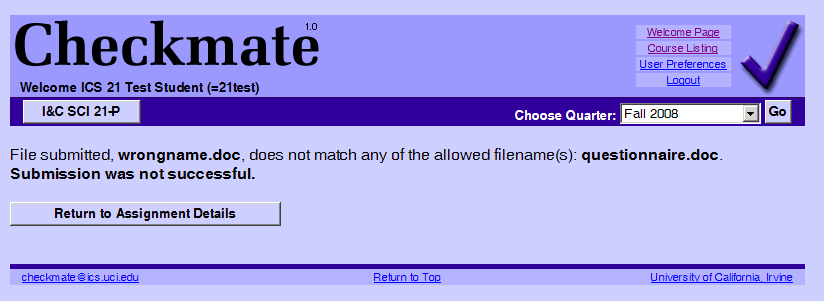
and then click the Submit File(s) button, you will see a page with the following error message.
|

|   |
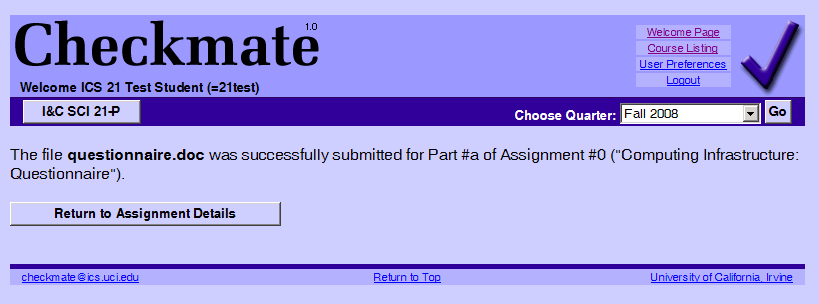
at which time you can click the Return to Assignment Details button to try again. If you click Browse... and then double-click the correct type of file, extension) you will see a page with the following confirmation message.
|

|   |
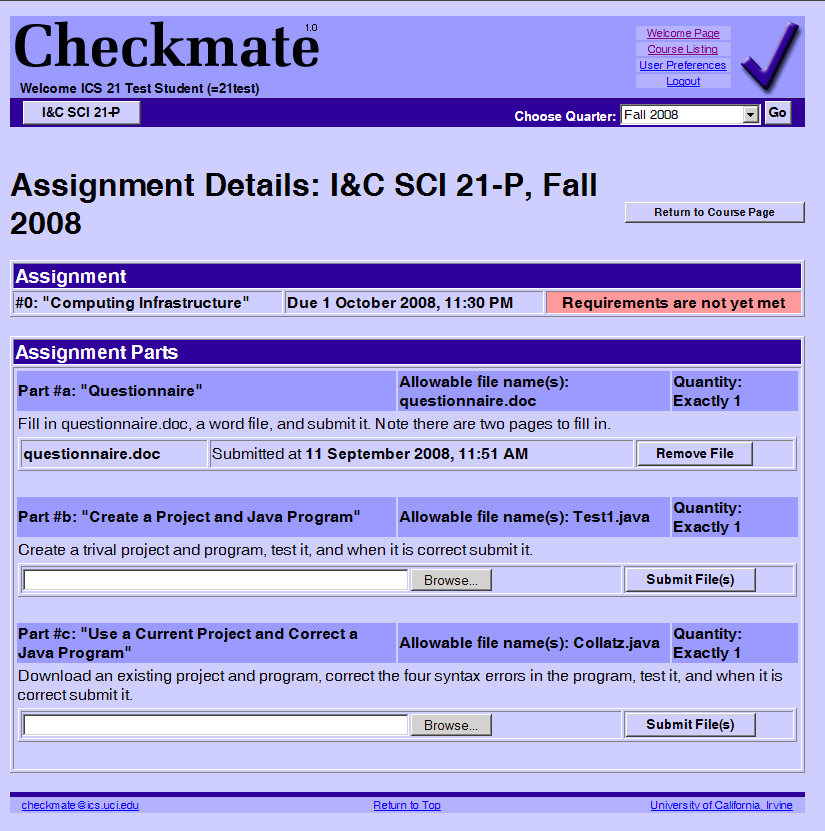
At this point, if you click the Return to Assignment Details button, you will see a page with the following status.
|

|   |
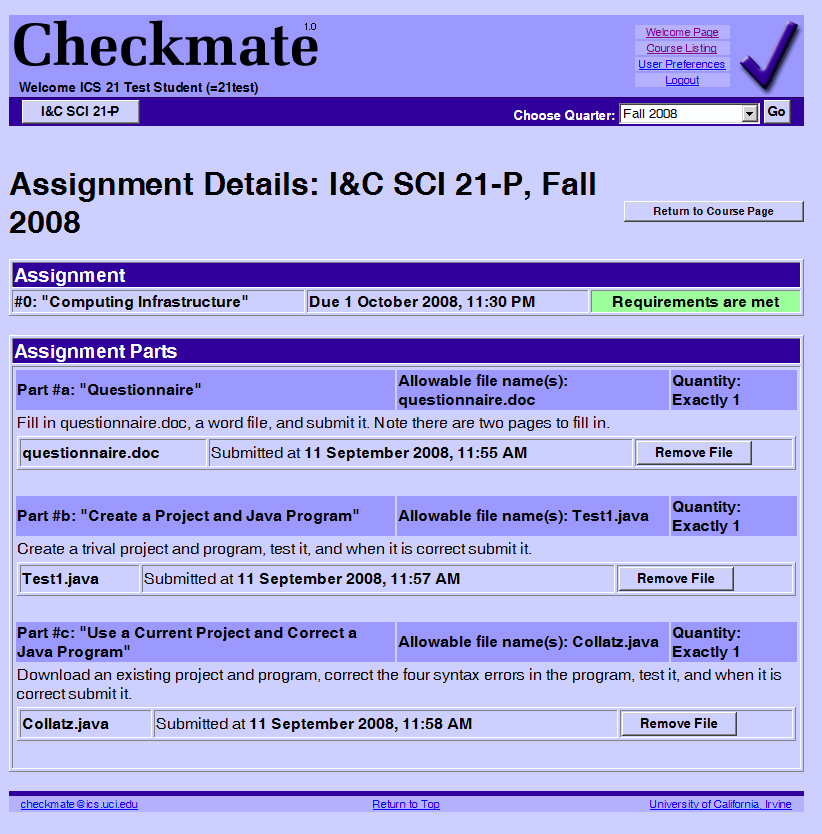
For Assignment, the red text, Requirements are not yet met, appears because only one of the three required parts of this programming assignment have been submitted. For Part #a, the Browse... and Submit File(s) buttons have been replaced with information about the file already submitted and a Remove File button, in case you want to resubmit a version of this file: you must first remove the current file, at which point the Browse... and Submit File(s) buttons will return. You may remove/submit as many files as you want. We can see all submissions but grade only the final last submission you made. After submitting all three files, Checkmate will display the page for this assignment as follows.
|

|   |
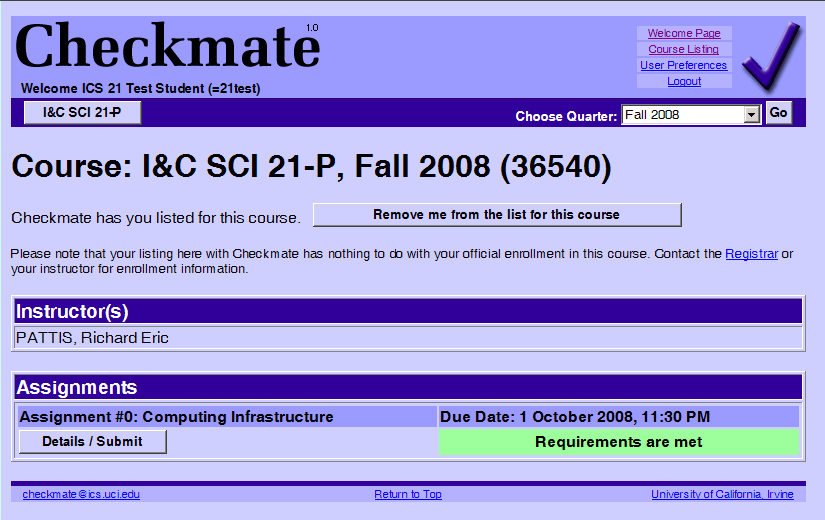
The green text, Requirements are met, appears because all submissions have now been successfully received for this assignment. Of course, this says nothing about the quality or correctness of the submission, only that file with the correct names were submitted. Again, gy using the Remove File buttons you can remove files that you submitted early, so that your resubmit any/all parts. These files are never really removed from the dropoff system, but instead are put in a special "old submission" area. Finally, if you return to the Course Page, which shows summary information about each assignment, you will see a page similar to the following one.
|

|   |
This completes our tour of the Checkmate system. You can practice with this system by yourself; we will all use it together during our first lab meeting. |